Availability tab
|
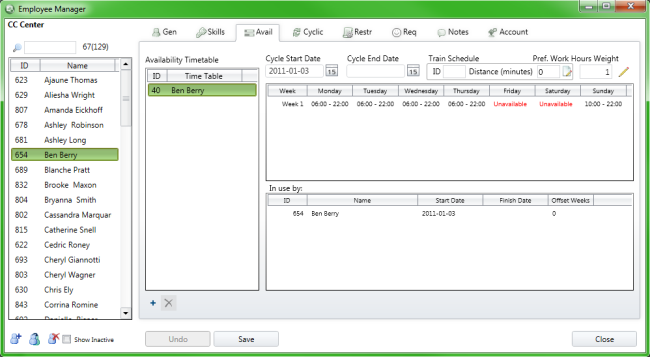
Availability Timetable |
If the selected employee is connected to an availability timetable the ID and name of that timetable will be displayed in this box. |
|
Cycle Start Date |
The start date of the availability timetable. |
|
Cycle End Date |
Optional - The end date of the availability timetable. |
|
Train schedule |
Please see separate section. |
|
ID |
If the employee is connected to a commuter timetable the ID of that timetable will be displayed in this box. |
|
Distance (minutes) |
The number of minutes it takes the employee to go between the commuting places (bus stop, train station) to the office. |
|
Pref. Work Hours Weight |
Is used in the optimization to give the agents their preferred work hours to the greatest extent possible. The agent with the highest weight is most likely to get his/her preferred work hours. All agents have “1” as a default weight value. If the availability timetables do not have preferred work hours entered this setting is redundant. |
|
In use by: |
If the availability timetable is connected to other agents they’ll be listed in the box. |
|
ID |
The IDs of agents connected to the highlighted availability timetable. |
|
Name |
The names of agents connected to the highlighted availability timetable. |
|
Start Date |
The start date of the selected availability timetable. |
|
Finish Date |
The end date of the selected availability timetable. |
|
Offset Weeks |
The offset in weeks between the start date of the availability timetable. |
Create an Availability Timetable
An availability timetable means that the automatic planning function (optimization) cannot plan shifts outside an agent’s availability times. In addition to this limitation, shifts cannot be scheduled outside the contact center’s opening hours. All employees need to be connected to an availability timetable. If no availability is entered for an agent, the program considers this agent available at all times.
An availability timetable can have a rotation of up to 26 weeks. The program will automatically know which week in the rotation an agent is at for each planning period. If the availability for an employee looks the same every week only one week’s availability needs to be entered.
To create a new availability timetable, or edit an existing one, you either click the Edit icon in the Availability tab (Employee Manager) or you go via the Application button in Scheduling and choose Availabilities.
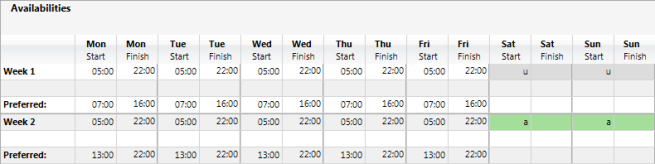
Enter the times when the employee can work. If the employee is available the whole day enter “a” and if the person is unavailable the entire day enter “u”. If a person has a split availability enter the first times on the first row and the later times on the second row.
It is also possible to enter preferred work hours, which is when the employee prefers to work within his/her availability. During the automatic planning this can be taken into consideration to different degrees, please see Optimization section for more information.
When the Availability timetable has been created you click the save icon. In the new dialog that opens you can give the timetable a name or leave it to the name suggested by the program. If you wish to connect the availability timetable to an agent you use the drop-down to select the agent in question. You must then select a start date from which the timetable is valid. You can either select a future or a past start date. Press Connect to connect the timetable to the agent and then press OK to close the dialog.
You can also connect an existing availability timetable to an agent directly from the Employee Manager (Availability tab) by selecting the agent in the left-hand side list and then click the plus sign to open the dialog of availability timetables. Select the timetable you wish to connect to the employee and the hit the OK button. The availability timetable will be displayed in the box and now you select a start date (and an end date if needed) before you click the Save button. The employee will be connected to the timetable from the selected start date.
To remove a connected availability timetable, you either select an end date and save, or you use the X icon (to the right of the plus sign).

