Users
Settings > Users
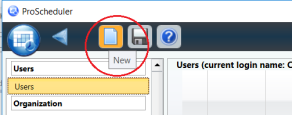
To add a new user, click on the New icon in the top task bar
-
Enter first name and last name
-
Click on add

|
ID |
Unique, numeric ID. |
|
First name |
The user’s first name. |
|
Last name |
The user’s last name. |
|
Login name |
The Windows authentication login name. Not available for hosted customers. |
|
E-mail address |
The user’s e-mail address. Will be used as the “From” address when e-mailing reports. If not entered, the e-mail address must be entered manually each time the user chooses to e-mail the schedule reports. |
|
Time zone |
The user’s time zone. Per default it will be the same as the default contact center time zone. This will also be the time zone displayed in ProSchedulerWeb. |
|
Login name [web] |
Login name used to login to ProSchedulerWeb. Or, used to login to ProScheduler and TimeManager should the Windows login (Login name column) not be populated/accurate. |
|
Password |
Password. If the Password column is left blank the Windows user will be used to identify the user when opening ProScheduler and ProSchedulerWeb. |
|
NN |
Initials. Can be left blank. |
|
CC ID |
Contact center ID. Used to limit the user from viewing all CCs in ProScheduler. Enter the IDs of the CC/CCs the user should have access to (separate by using ;). If no IDs are entered the user will access all CCs within ProScheduler. |
|
WG ID |
Work group ID is used to limit the user from viewing all WGs in ProScheduler. Enter the IDs of the WG/WGs the user should have access to (separate by using ;). If no IDs are entered the user will access all WGs within ProScheduler. |
|
Team ID |
Team ID is used to limit the user from viewing all Teams in ProScheduler. Enter the IDs of the Team(s) the user should have access to (separate by using ;). If no IDs are entered the user will access all Teams within ProScheduler. |
|
Plp. ver. |
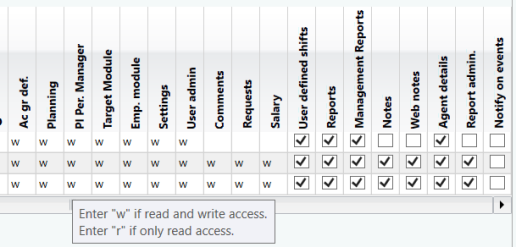
Planning period ID allows you to limit which planning period types you see in scheduling Preliminary 101, Official 102, Test 103 and Results 104 (you can do combinations using semicolons 101;104) |
|
Ac gr def. |
Old setting which has no function anymore |
|
Planning |
Main Menu – scheduling module disabled |
|
Pl Per. Manager |
Main Menu – Planning Period Manager disabled, also on open planning period in scheduling |
|
Target Module |
Main Menu – target module disabled |
|
Emp. Module |
Main Menu – Personnel module disabled |
|
Settings |
Main Menu > Settings – disables all but users |
|
User admin |
Main Menu > Settings – disables only users |
|
Comments |
Scheduling Planning View > right click > insert > comments disabled |
|
Requests |
Main Menu – Manage Requests icon hidden |
|
Salary |
Personnel > Employee Manager > General tab salary hidden |
|
User defined shifts |
Disable ability to add/edit/delete user defined shifts, but able to view them |
|
Reports |
Main Menu – Reports module disabled |
|
Management Reports |
Main Menu > Reports – Management Reports disabled. If customer has licensed Management reports and this option is not shown go to system settings -> PayRollCost and check the box. |
|
Notes |
Old setting which has no function anymore |
|
Web Notes |
Old setting which has no function anymore |
|
Agent details |
Customer specific setting for a German customer, which was created so they could hide some information in the Agent Performance Report, as they were not allowed to see their agent’s performance. |
|
Report admin |
Old Access to settings in TimeBar |
|
Notify on events |
Old setting which has no function anymore |

